HPSEBL stands for Himachal Pradesh State Electricity Board Limited. It is the electricity distribution utility serving Himachal Pradesh. Its official online services allow consumers to handle routine billing and account work without visiting an electricity office for every request.
HPSEBL’s current Consumer Portal separates services that can be used without login from personalised account services. Consumers can view an energy bill and make a quick payment without signing in, while OTP-based login gives access to bill history, payment history, consumption data, receipts and service-change applications.
This article explains HPSEBL login, online electricity bill payment, how to view or download a bill, customer care details and practical online services consumers may need.
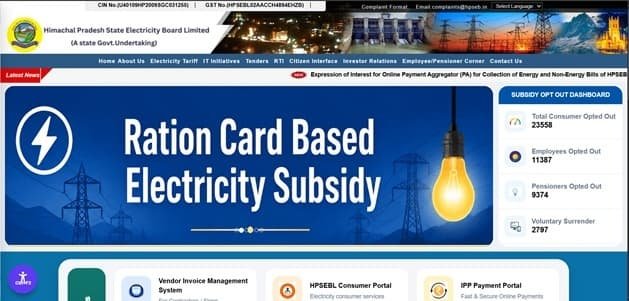
HPSEBL Quick Details
| Details | Information |
| Full Name | Himachal Pradesh State Electricity Board Limited |
| Common Name | HPSEBL |
| Service Area | Himachal Pradesh |
| Main Services | Electricity distribution and consumer services |
| Online Bill Payment | Available |
| Bill Viewing | Available |
| Primary Consumer Identifier | Consumer ID |
| Customer Care | 1800-180-8060 / 1800-180-1912 |
| Office | Vidyut Bhawan, Shimla, Himachal Pradesh – 171004 |
| Official Website | hpseb.in |
The official consumer system currently uses HPSEBL Consumer Portal. Consumers should enter the identifier exactly as printed on a recent bill and verify the connection details before authorising a payment.
HPSEBL Login
HPSEBL currently uses OTP-based consumer login. The mobile number must be linked with the Consumer ID, after which all Consumer IDs mapped to that number can be displayed.
To access HPSEBL online consumer services, follow these general steps:
- Open the HPSEBL Consumer Portal.
- Choose Login.
- Enter the mobile number registered with the electricity connection.
- Request and verify the OTP.
- The Consumer IDs linked with that mobile number should be displayed after verification.
- Select the required connection and open the personalised dashboard.
- If the mobile number is not linked, use the official mobile-update facility before attempting login again.
If login fails, verify the consumer identifier and registered mobile/contact details before repeatedly resetting credentials. A recently changed mobile number or unmapped connection is a common reason for OTP or account-access problems.
HPSEBL Electricity Bill Payment
HPSEBL consumers can pay electricity dues through the authorised online payment route. In most cases, a one-time or quick-payment option is available so a consumer does not need to open the full registered dashboard merely to clear the current bill.
Before payment, keep the Consumer ID and a recent bill ready. Always confirm the consumer name, service address and amount shown on screen before proceeding to the payment gateway.
How to Pay HPSEBL Electricity Bill Online
The general process is:
- Open the HPSEBL Consumer Portal.
- Choose Quick Payment under services available without login.
- Enter the Consumer ID and other verification information requested.
- Fetch and verify the bill amount and consumer details.
- Choose an available online payment method.
- Complete payment securely.
- Save or download the payment receipt once the transaction succeeds.
After payment, do not close the page until the transaction status is displayed. Save the acknowledgement, transaction ID or receipt. This is especially important when payment is made close to the due date or when the account has previous arrears.
If the bank account is debited but the utility does not immediately show the payment, avoid making a duplicate payment without first checking payment status/history and the transaction reference.
How to View HPSEBL Electricity Bill
HPSEBL provides online bill access through its consumer or bill-viewing system. Depending on the utility, the current bill may be fetched directly with the Consumer ID, while historical bills generally require a registered account.
Steps to View HPSEBL Bill
- Open the HPSEBL Consumer Portal.
- Select View Your Energy Bill under services available without login, or login for full history.
- Enter the Consumer ID/details requested by the portal.
- Fetch the current energy bill.
- Check the billing period, readings, units and amount payable.
- For older bills, login and open Bill History.
- Download the bill or receipt where the portal provides the option.
When checking a bill, review more than the total payable amount. Confirm the billing period, meter reading, units consumed, previous balance or adjustment, due date and any delayed-payment charge shown on the account.
How to Download HPSEBL Bill
Where the portal provides a bill PDF, statement or printable bill view, open the required billing period and use the download/print option. Consumers who need an older document should use bill history or statement-of-account services rather than relying only on the current Quick Pay screen.
It is useful to save important bills and payment receipts for address proof, reimbursement, tax/accounting records, tenant-landlord reconciliation or future billing disputes. A saved copy also helps when a portal is temporarily unavailable.
HPSEBL Customer Care Number
The principal HPSEBL consumer-support contact is 1800-180-8060 / 1800-180-1912. Consumers should use official customer-care channels for supply failure, billing errors, meter issues, payment problems and other electricity-service complaints.
| Customer Service | Contact |
| HPSEBL Customer Care | 1800-180-8060 / 1800-180-1912 |
| Consumer Portal Support | Use current HPSEBL portal contact/help option |
| Official Website | hpseb.in |
When registering a complaint, keep the consumer identifier, registered mobile number, exact service address and a short description of the problem ready. Note the complaint/reference number and use it for follow-up rather than opening repeated complaints for the same issue.
HPSEBL Office Address
The relevant corporate/consumer office information is: Vidyut Bhawan, Shimla, Himachal Pradesh – 171004. Routine bill payments and common service requests should normally be handled through the online portal or local service office unless the matter specifically requires escalation.
Other HPSEBL Online Services
Apart from bill payment and bill viewing, HPSEBL digital services include bill and payment history, 12-month consumption history, bill/receipt downloads, complaint registration and tracking, new connection, mobile/email update, name/load/category/supply-voltage change, TDCO/RCO/PDCO requests and smart-meter services.
Availability can depend on consumer category, meter type and service area. Smart/prepaid consumers may see additional recharge or consumption options that do not appear for ordinary postpaid connections.
Frequently Asked Questions
Q. Why does HPSEBL require my mobile number to be linked with the Consumer ID?
The current consumer portal uses OTP-based login. Linking the mobile number allows the portal to identify all Consumer IDs associated with that number and display the correct dashboard.
Q. Can I still view or pay an HPSEBL bill if I cannot login?
Yes. HPSEBL lists View Your Energy Bill and Quick Payment among services available without login. Login is mainly needed for personalised history, receipts and service requests.
Q. How can I retrieve an older HPSEBL payment receipt?
Login to the consumer portal and use Payment History/receipt download. If the transaction is missing, keep the bank reference and contact support with the Consumer ID and payment date.
Q. What should I do if an HPSEBL bill shows an unusual jump in units?
Compare the current reading with the meter and review the last 12 months of consumption in the portal. A large unexplained difference should be raised as a billing or meter complaint, preferably with a meter photograph.
Q. Can one mobile number manage more than one HPSEBL connection?
The portal is designed to display Consumer IDs linked to the registered mobile number. This can be useful for households or users who legitimately manage multiple connections under the same verified contact number.